Features
Explore what makes our application an easy-to-use yet powerful digit asset protection tool.
- Native Windows Explorer User Interface
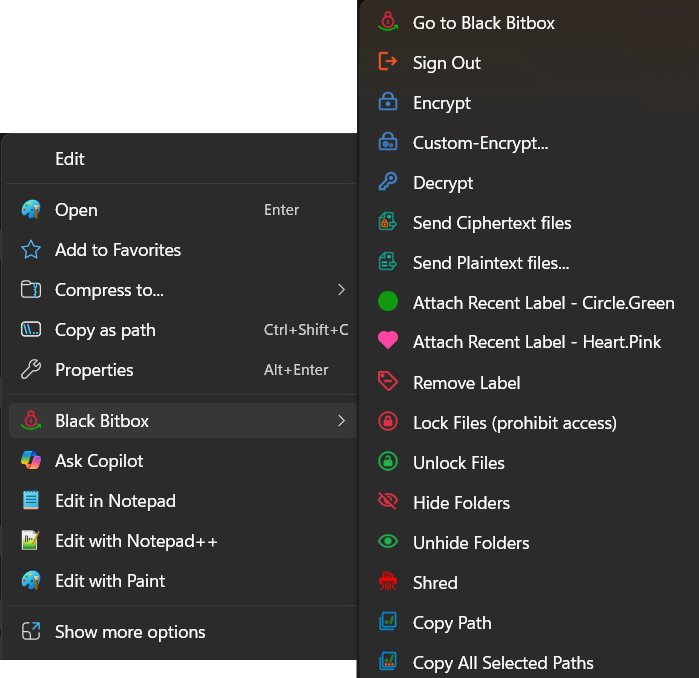
- Shell Menu Integration
- Multiple File Browsers in a Single Window
- Patented Ultra-Fast Cryptographic Algorithms
- Encrypt Files for Own Use or for Sharing with Others
- Send Files in Windows File Explorer or Black Bitbox
- The Secure Folder and Auto-Encryption
- Tightened Security
- Black Bitbox Player — Access Without Decryption
- More About Black Bitbox Player
- Black Bitbox Text Editor — Edit Without Decryption
- Lock Files and Hide Folders
- Password Generators
- Label Files
- Multi-Column View
- Multi-Thumbnail View Additional Features only in Premium Edition
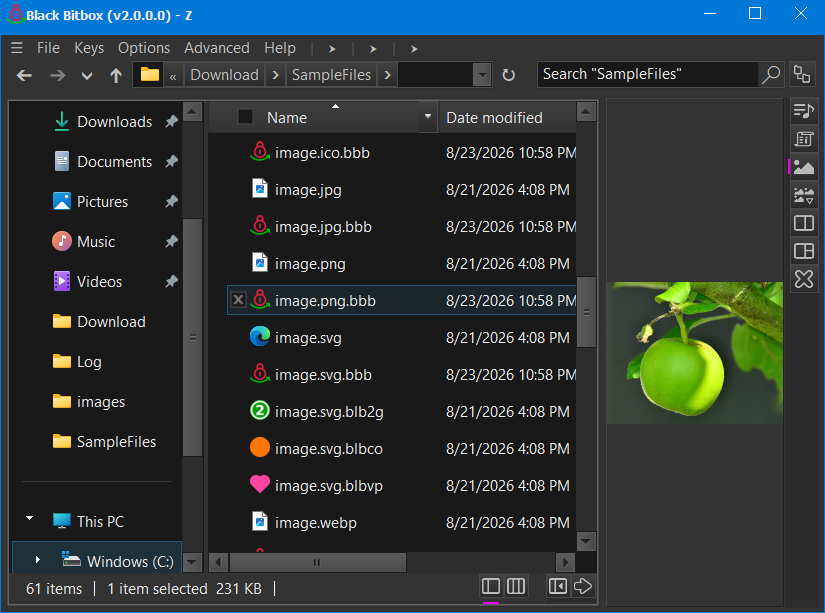
1. Native Windows Explorer User Interface
Built upon the native Windows Explorer Control, with additional crypto and other functions added.
3. Multiple File Browsers in a Single Window
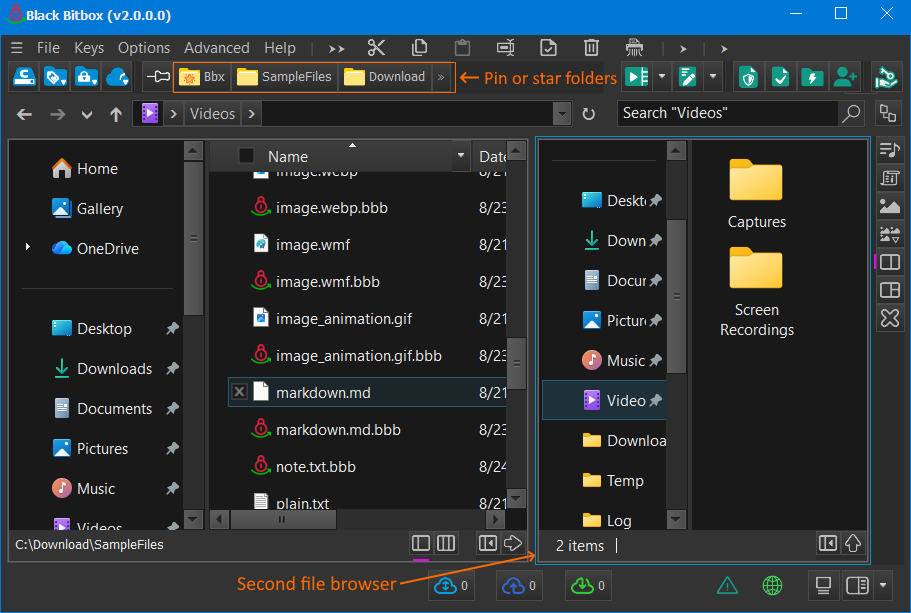
Up to 3 file browsers can be opened in a single Black Bitbox window, which makes it convenient to copy and paste files between two different folders.
Folders can be pinned and further starred for quick access.
4. Patented Ultra-Fast Cryptographic Algorithms
Patented ultra-fast cryptographic hash function and stream cipher are used to speed up the processing of files, particularly gigantic files like 4K and 8K video files.
The stream cipher is designed with fast-forwarding support so that it can jump to any position of a big file or long stream in virtually no time and then encrypt or decrypt data from there. It can also be configured to provide a bounded random access time, which is useful when random access to a file or stream of arbitrary size is needed. It provides a 512-bit encryption strength that exceeds industry standards and it remains secure against quantum computing.
5. Encrypt Files for Own Use or for Sharing with Others
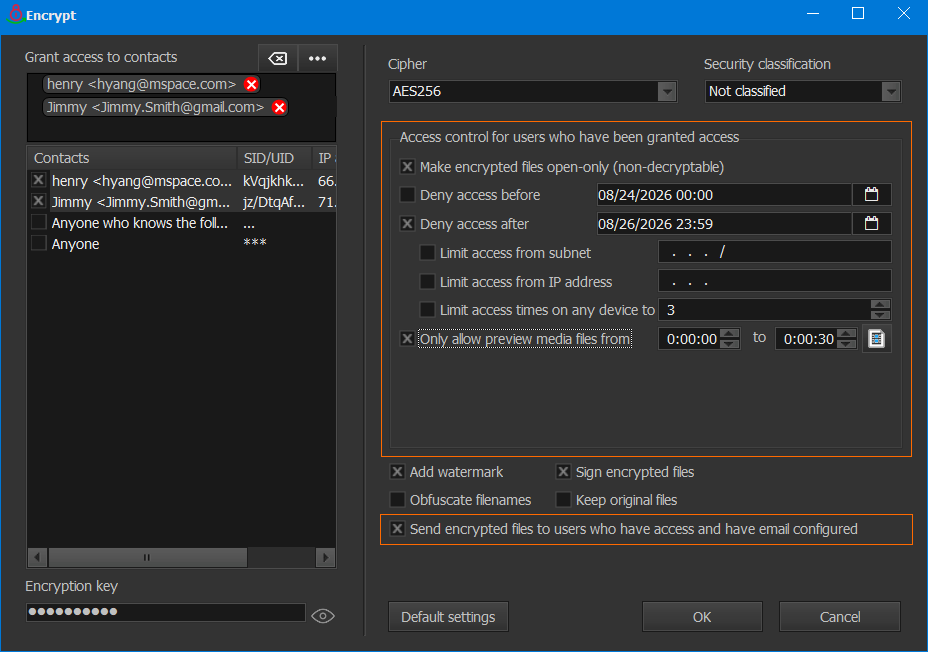
Files can be encrypted for own use or for sharing with others.
When sharing files with others, the owner has full control of the encrypted files.
6. Send Files in Windows File Explorer or Black Bitbox
When files are encrypted for sharing, the owner of the files can choose to send the files immediately after encryption or choose to send at a later time through the context menu of Windows File Explorer or Black Bitbox. Plaintext files can be sent through the context menu as well.
Note that an email has to be configured before a user can send or receive files within Black Bitbox. Sharing files through emails avoids the cost associated with other file transfer or cloud services, which is a key factor to make Black Bitbox affordable. An option of sharing files without configuring an email will be provided in the premium edition for users who are willing to pay the cost associated with file transfer.
Users can always share files using other tools as they usually do. In this case, they can still encrypt files for sharing, but choose not to send the files through Black Bitbox.
7. The Secure Folder and Auto-Encryption
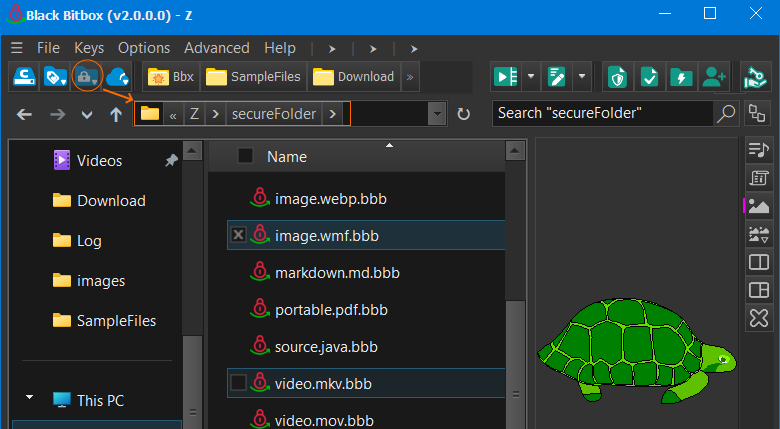
A secure folder is created for each user. This folder will be automatically hidden upon the close of Black Bitbox application.
Files and/or folders dropped into this folder are automatically encrypted.
Access this folder by clicking the lock button in the top-left corner. Press the Esc key to switch between the "clean" UI and the normal UI that shows more buttons.
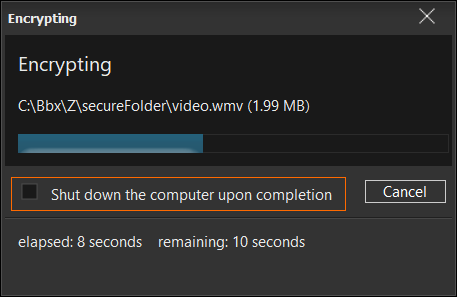
Besides auto-encryption, users can also start encryption right before, for example, they leave office or go to bed, and tick the "Shut down the computer upon completion" checkbox. Black Bitbox will automatically lock the computer while encryption is performed and shut down the computer once encryption is complete.
8. Tightened Security
Black Bitbox does not collect passwords, secret keys, or private keys. Users are solely responsible for managing their passwords and keys. Each user is urged to set a Backup Password (during account creation or through main menu File > Set Backup Password) for recovering the signin password.
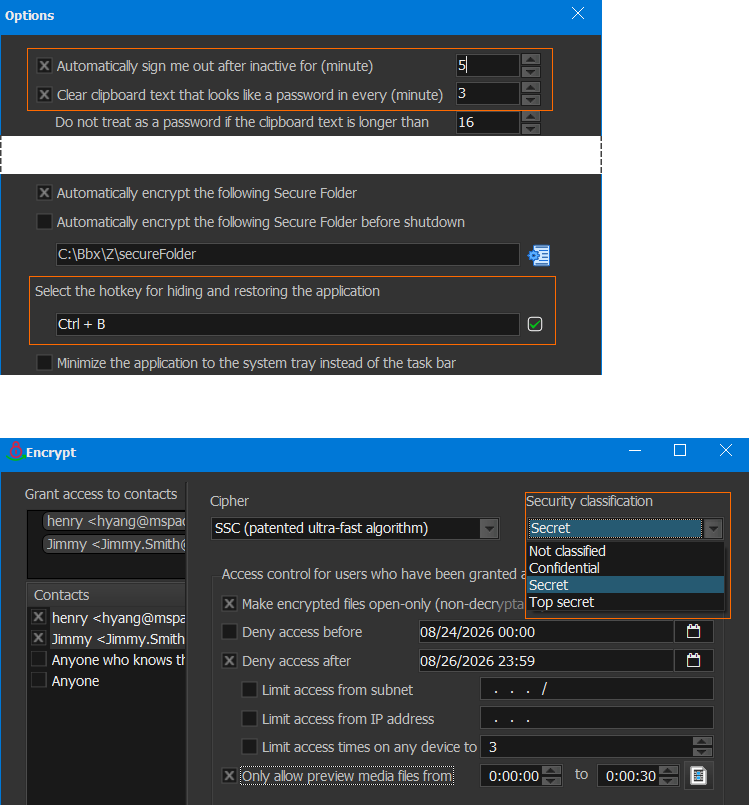
By default, Black Bitbox will sign out inactive users and clear passwords that are left in the clipboard for a certain amount of time.
Screenshots are disabled for protected contents, and a global hot key (default to Ctrl + B) is configured for hiding (and restoring) the main window, player window, and text editor window.
Encrypted files (a.k.a ciphertext files) can be either unclassified or classified (Confidential, Secret, or Top Secret). To access classified encrypted files, users are required to sign in each time, no matter they have already signed in or not.
9. Black Bitbox Player — Access Without Decryption
With the embedded Black Bitbox Player, encrypted files can be accessed without decryption.
Decryption for access is not only inconvenient but also insecure. It also makes impossible to share an encrypted file with others without losing the control of the file. With Black Bitbox, the owner of an encrypted file has full control of the file.
10. More About Black Bitbox Player
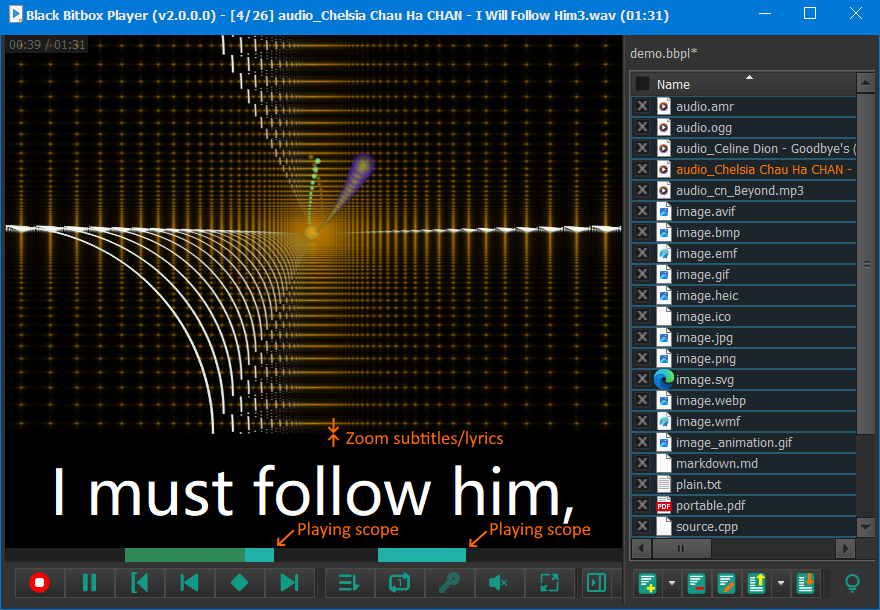
Play or view almost all common media and non-media file formats, in either plaintext or ciphertext formats.
Subtitles/lyrics, in either .lrc, .srt, or .vtt format, are automatically picked up, displayed separately or alpha blended with the media contents.
Playing scopes can be set to play within those scopes.
Black Bitbox Player does not rely on file extensions to detect the original file type of an encrypted file. So, for example, song.mp3.bbb can be renamed to abc.pdf, xyz, and so on.
Press the Esc key to switch between the "clean" UI and the normal UI.
11. Black Bitbox Text Editor — Edit Without Decryption
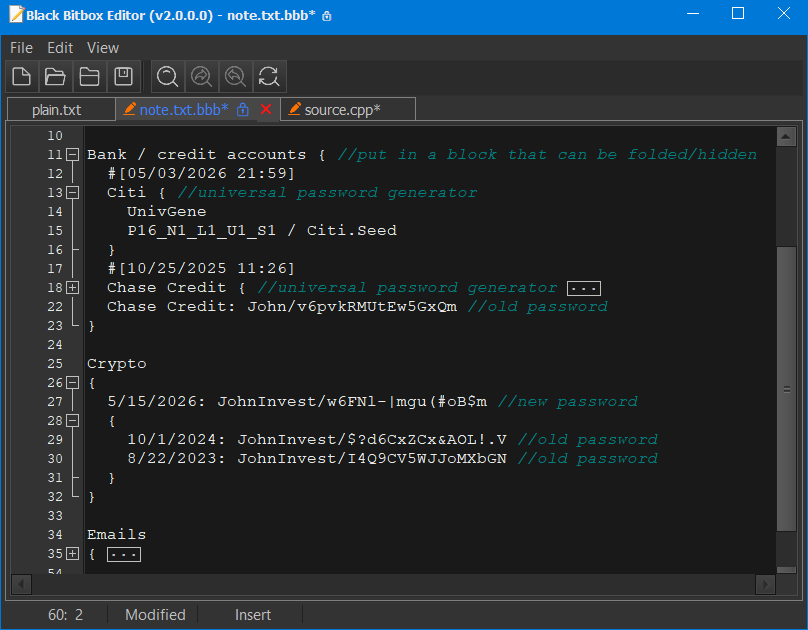
Encrypted text files can be directly edited without decryption. Text files are not limited to .txt files.
Instead edit a text file and then encrypt it, users can encrypt an empty text file first and then edit this encryted file. This ensures no plain text files will ever be saved on the disk.
Black Bitbox does not rely on file extensions to detect whether an encrypted file is a text file.
12. Lock Files and Hide Folders
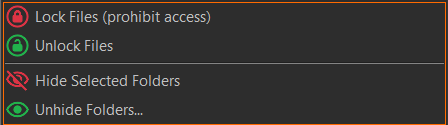
Black Bitbox provides file locking and folder hiding functions. Besides normal data folders, the folder hiding function can also be used to hide a program folder, along with its startup menus, desktop icons, and possible pinned taskbar icons.
Note that currently there is no virtual volume/disk or any special cryptographic measurements implemented in the folder hiding scheme. While the hidden folders are not visible or searchable in Windows Explorer, they might still be visible in some advanced third-party search tools.
13. Password Generators
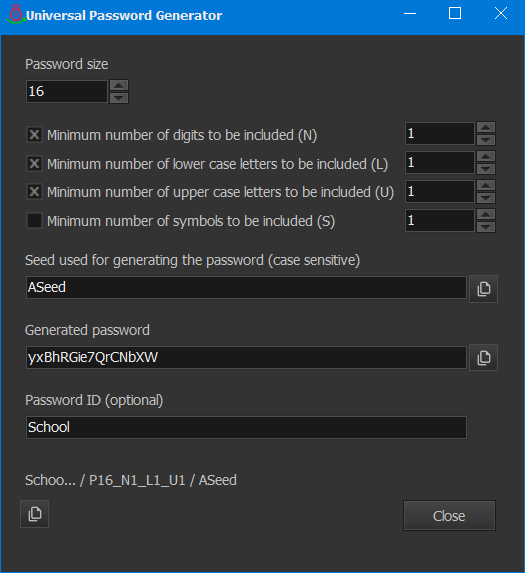
The universal password generator uses our patented cryptographically secure pseudorandom number generator to generate passwords from seeds. By universal, it means the same setting and seed will always generate the same password.
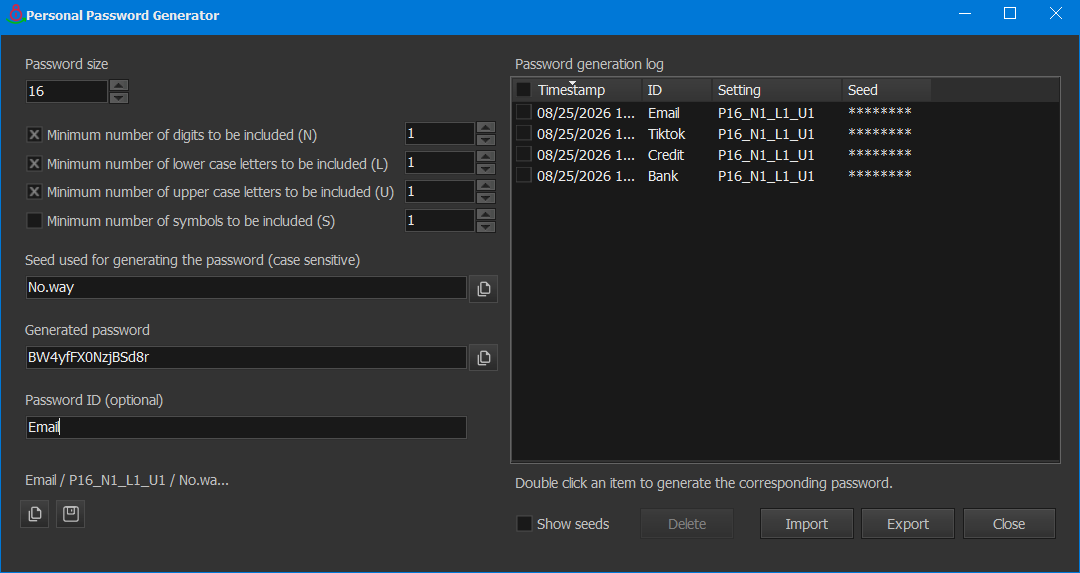
The personal password generator works similarly, but is linked to each user account. Different users will generate totally different passwords even with the same setting and seed. Users have to sign in to use this generator. It should not be used to generate the signin password, because that will create a mutual dependency and a possible dead lock.
Click the save button to save the current setting and seed to the password generation log, which will be automatically encrypted and saved upon the close of the generator and loaded into the generator next time. Double click an item in the log will paste the setting and seed into the left pane and automatically generate the corresponding password.
14. Label Files
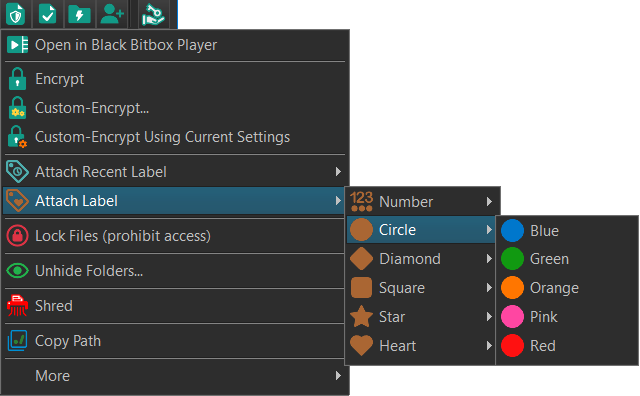
Labels can be attached to files. Labels are special zero-size shortcuts pointing to the actual files. They can be used in place of the actual files in almost all cases.
When attaching a label, one label file is first created in the same folder of the target file, and then this label file is copied into several subfolders of a dedicated label shortcuts folder. This dedicated folder is created for the purpose of finding all labels in a single place. It can be opened by clicking the label button in the top-left corner.
When a user selects a subfolder in the label shortcuts folder, Black Bitbox will go further down by skipping all subfolders that only contains a single subfolder, because in such a subfolder the user can do nothing but enter the next level subfolder. This feature is also availabe to other folders, but to use it users need to hold down the Alt key when opening a folder.
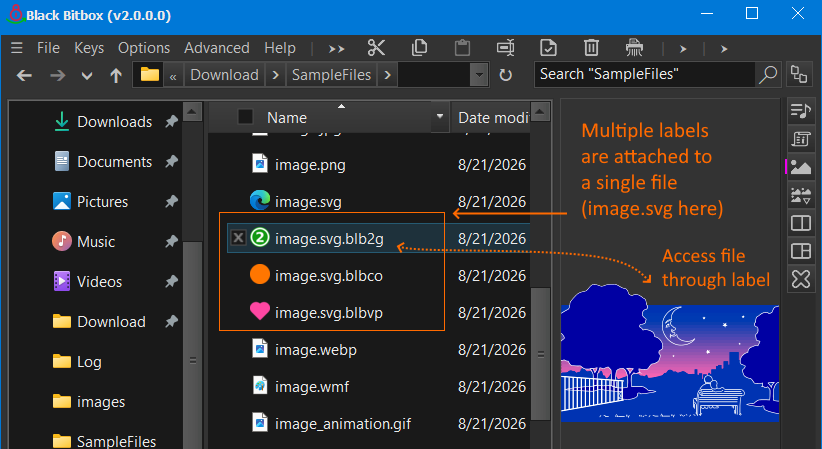
Multiple labels can be attached to a single file, as a file may belong to multiple categories. Each Label has a name and a color. When needed, users can add customized descriptions to labels (through main menu Options > Customize Label Descriptions).
15. Multi-Column View
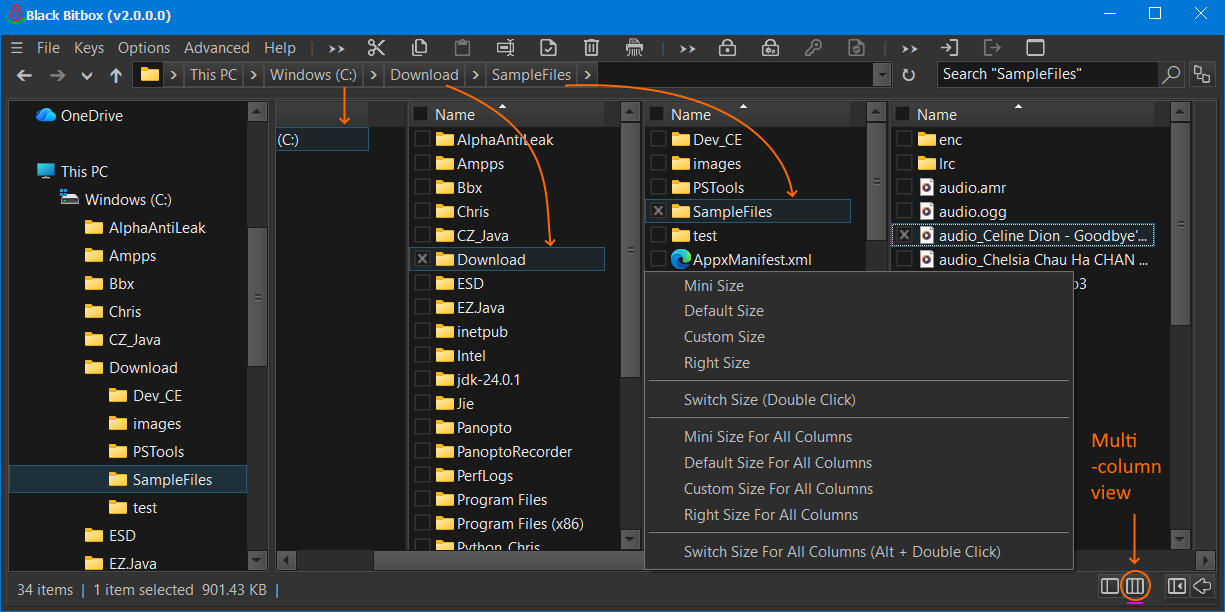
Besides Windows standard views, Black Bitbox provides two additional special views: the multi-column view and the multi-thumbnail view.
The multi-column view opens a column for each folder along the selected path and shows the contents of the selected path in the last column.
Double click a column splitter to switch among four column sizes for the column right before the splitter: mini size (a predefined minimum size), default size (a predefined default size), custom size (current size set by the user), and right size (the size set according to the longest file or folder name in it). Column sizes can also be changed through the context menu of a column splitter.
16. Multi-Thumbnail View
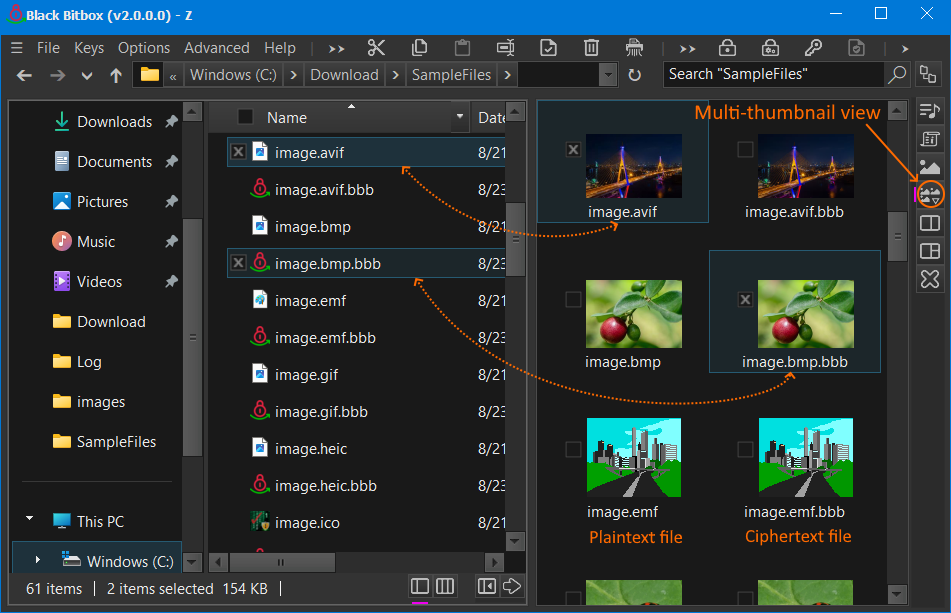
The multi-thumbnail view show thumbnails for all files in a folder, including encrypted files. The native Windows file explorer also has a multi-thumbnail view, but it cannot show thumbnails for encrypted files.
Note that thumbnails for encrypted files are only shown after the user has signed into Black Bitbox. Also, for security reason, thumbnails for classified encrypted files are not shown.
Thumbnail size can be changed through the context menu of the multi-thumbnail button. This context menu can be shown by right clicking the button or by pressing and holding down the left mouse button on the button for more than half a second.
Selections are automatically synchronized between the main file browser and the multi-thumbnail view.